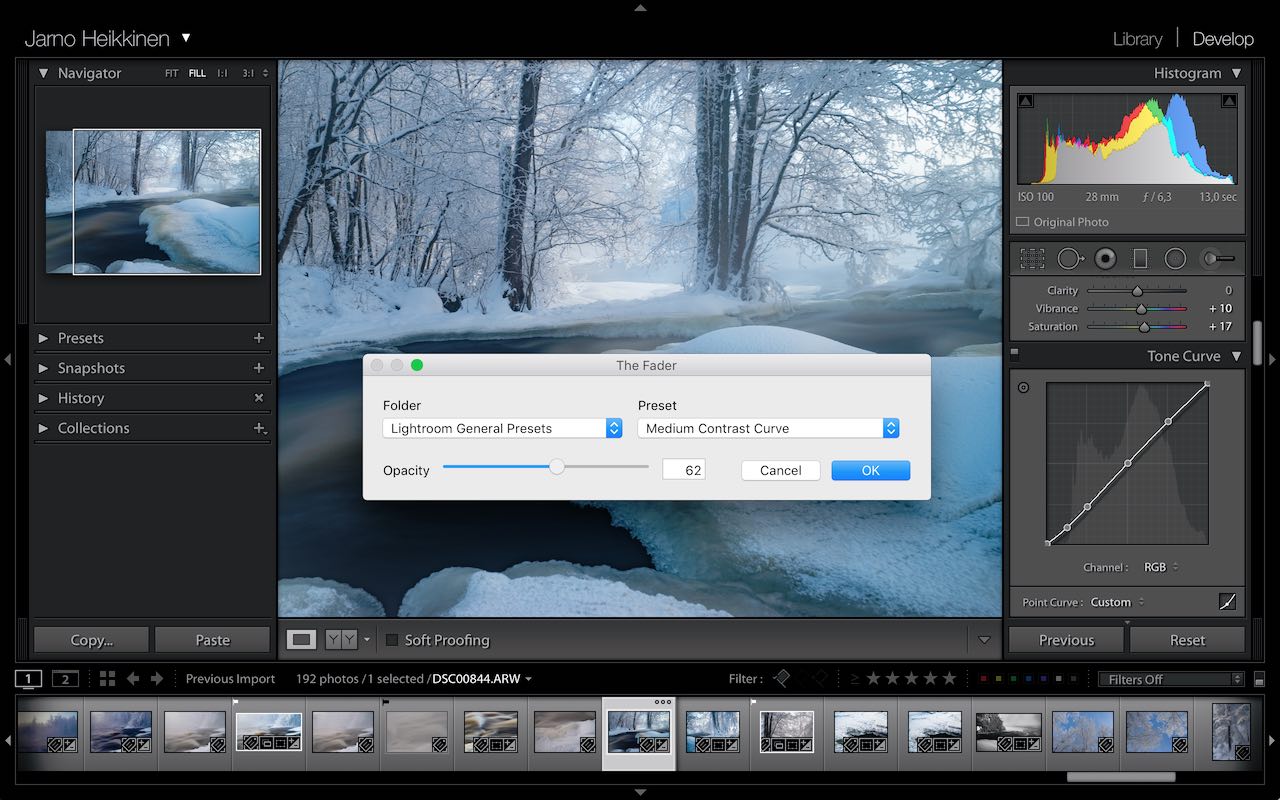
The Fader

The Fader, the weighted preset plugin for Lightroom!

Instead of the boring static “100% only” presets, you can now dynamically choose how much of the preset you want to apply. And of course, The Fader goes up to 150%, so you can over-process your over processing! And if you REALLY hate cross-processing, you can have up to 50% less of it simply by moving the slider below 0%.

The Fader, Lightroom 3.0 (and 4.0) plugin for applying develop presets with custom opacity.

The Fader works by dynamically applying a “faded preset”, it does not modify any of your existing presets. The Fader computes new values internally and moves all the sliders for you.

Download

Get the plugin (version 0.5.796)

Video tutorial

The Fader quick tutorial video

Starting from version 0.5, The Fader plugin is distributed as shareware.  Without registering, the plugin fades only towards those presets which are shipped with Lightroom (of course, the current develop settings can be chosen freely).  Registration lifts this restriction and costs $10 (payment with Paypal). You can register the plugin from Lightroom Plugin Manager, clicking “Register” button will open a paypal form. Paypal transaction ID is used as an activation code, which needs to be entered to The Fader’s activation code text field inside plugin manager.

Above you can see example of results produced by The Fader.  First image is Lightroom’s “Yesteryear 1″ preset, applied with Lightroom 4 beta, using Process Version 2012.  Following pictures have “General – Zeroed” preset applied on top of Yesteryear, with 33%, 67%  and 90% opacity.

The Fader has also lost some weight, version 0.5 has new slick design in its one and only dialog!  To fade a preset, you simply select the preset folder from the left pull down menu, and then the actual preset from the right side pull down menu.  After selecting the preset, simply adjusting the opacity slider will change its strength.

Pro-tip: dragging the slider can be a little taxing on the CPU, because the whole preset needs to be re-computed.  Simply clicking on the slider or typing the value is faster.

51 thoughts on “The Fader

  1. Pingback: The Fader - Lightroom Tool

  2. Pingback: The Fader Lightroom plugin | Designpirates

    • Unregistered version is limited to built-in presets, registration ($10) will remove this restriction. “Register” button is located in the Plug-in Manager.

        • Auto Tone is a bit tricky option, since there is no way to know what will happen, Lightroom will calculate the basic slider values based on the histogram an its own secret algorithm, so supporting it is a bit difficult.

  3. I have lightroom 2 installed on my system, does the preset fader plugin work with lightroom 2? or is it just for versions 3 and 4?
    thanks
    Thomas

    • Plugin only works with Lightroom 3 and 4. Lightroom 2 has no API for develop presets, so plugins cannot access them.

  4. I have downloaded and am using my first plug in. The fader. The only prob i am having is how do i unlock the lock button that allows me to fade the photo?
    It wont let me move the slider or type in an amount i want to apply.

    Thank you very much.

    • First, you need to select the preset folder from the left pulldown menu, e.g. “Lightroom Color Presets”. Next, select preset name from the right pulldown menu, e.g. “Cross Process 3″. Now, the slider is set to 100%, and adjusting it will update the photo develop settings. Registering will allow you to adjust any custom preset, not just the Lightroom’s built-in presets.

  5. new to this. saw the fader and downloaded…installation and use guide please. I added it to the plug in manager but not really sure how to access it or where to access it from…via export?

    thanks!

  6. Hello Jarno,
    I have Mac and PC. Will that plug-in work on both platforms, and how many times I need register for that?
    Thanks
    Alex

  7. Pingback: 2012 Inexpensive Gifts for the Photoshop Lover on Your List « Digital Lady Syd's Fun Photoshop Blog

  8. I downloaded the fader and purchased and put in my registration code, however, everything is still locked.. what am I doing wrong?

    • The lock icon also indicates that you have not yet selected preset folder and the preset to be faded, the lock will disappear after the preset is selected.

  9. I’m a fairly new LR3 (mac) user and I’m a bit confused about how to install the download. When I open the download it forces LR to import panel mode. LR wants to import it as a photo, which of course it is not. Please help :-) Thanks.

    • The download is a ZIP file, which needs to be unpacked first (depending on your settings, Safari might do it automatically). After unpacking, you should have a directory called “The Fader.lrplugin”, which you should move where you want to have the plugins stored. Then, start Lightroom, and open File -> Plugin Manager. Click “Add” (left bottom corner), navigate to “The Fader.lrplugin” and click “Add Plugin”.

      Plugin is loaded. Close plugin manager (“Done”), select a photo and open The Fader from File -> Plugin extras -> The Fader.

      This is also shown on The Fader quick tutorial video

  10. Thanks for the help, that worked the other day. I went back today and the fader isn’t listed as one of my plug-in extras anymore? How could it just disappear?

    • If you delete “The Fader.lrplugin” directory, it will disappear from the plugin list. Perhaps you did not extract it to permanent location, but installed from a temporary locaton.

  11. Can the registered version be accessed more efficiently than having to go to File>Plug-in Extras>The Fader, e.g. a customized keyboard shortcut or from the Presets Panel?

    • On Mac, you can add shortcuts in System Preferences’ Keyboard section, open the Application Shortcuts and click on the plus sign.

      With Lightroom plugins, the trick is to add three spaces before the menu entry name!

      System Preferences

  12. Pingback: Instalacja plug-inów w Lightroom - Projekt Makowisko

  13. Pingback: Updated list of Lightroom Develop presets | The Lightroom Queen

  14. Launch Fader from inside Lightroom 4 on Mountain Lion 10.8.2 with Keyboard Shortcut.

    I have recently upgraded my OS from Snow Leopard to Mountain Lion and previously I was able to create a keyboard shortcut to launch The Fader
    …The Fader and then ctl+opt+F

    But now I am unable to get this to work. Any suggestions?

    • I am using The Fader myself with a keyboard shortcut on OS X 10.8.2 so it really should work. Make sure you are actually using three spaces in the menu title, e.g. ” The Fader”, and that the application is Adobe Photoshop Lightroom 4.

  15. I paid the donation to register but am having trouble getting it to work on some of my favourite presets in particular those with separate RGB adjustments on the tone curve.

    Can you please advise. Thank you

  16. Having a problem with this, I get a pop up that says task completed – Fader and it stays on screen until I close fader.

  17. Pingback: Lightroom Presets: 100% or nothing? | serendipity…

Leave a Reply

Your email address will not be published. Required fields are marked *

*

You may use these HTML tags and attributes: <a href="" title=""> <abbr title=""> <acronym title=""> <b> <blockquote cite=""> <cite> <code> <del datetime=""> <em> <i> <q cite=""> <strike> <strong>